
Apply a subdued moody-green color grade to the permitted source image without changing the person, pose, objects, background or crop. Shift bright foliage toward restrained forest and olive greens, reduce distracting saturation, deepen shadows while keeping facial detail readable and maintain neutral believable skin tone. Protect black and dark clothing from crushing together, preserve highlight texture and add only subtle fine grain. Keep the result editorial rather than military or fantasy themed. Do not tint skin green, create muddy shadows, add insignia, HDR halos, text, logos or a split-screen comparison.
Moody Green Preset Prompt
A green grade should organize the environment without tinting the face. This preset direction subdues foliage, deepens shadows carefully and protects neutral skin.
This site does not upload or generate images. Use the copied prompt in a compatible AI image tool.
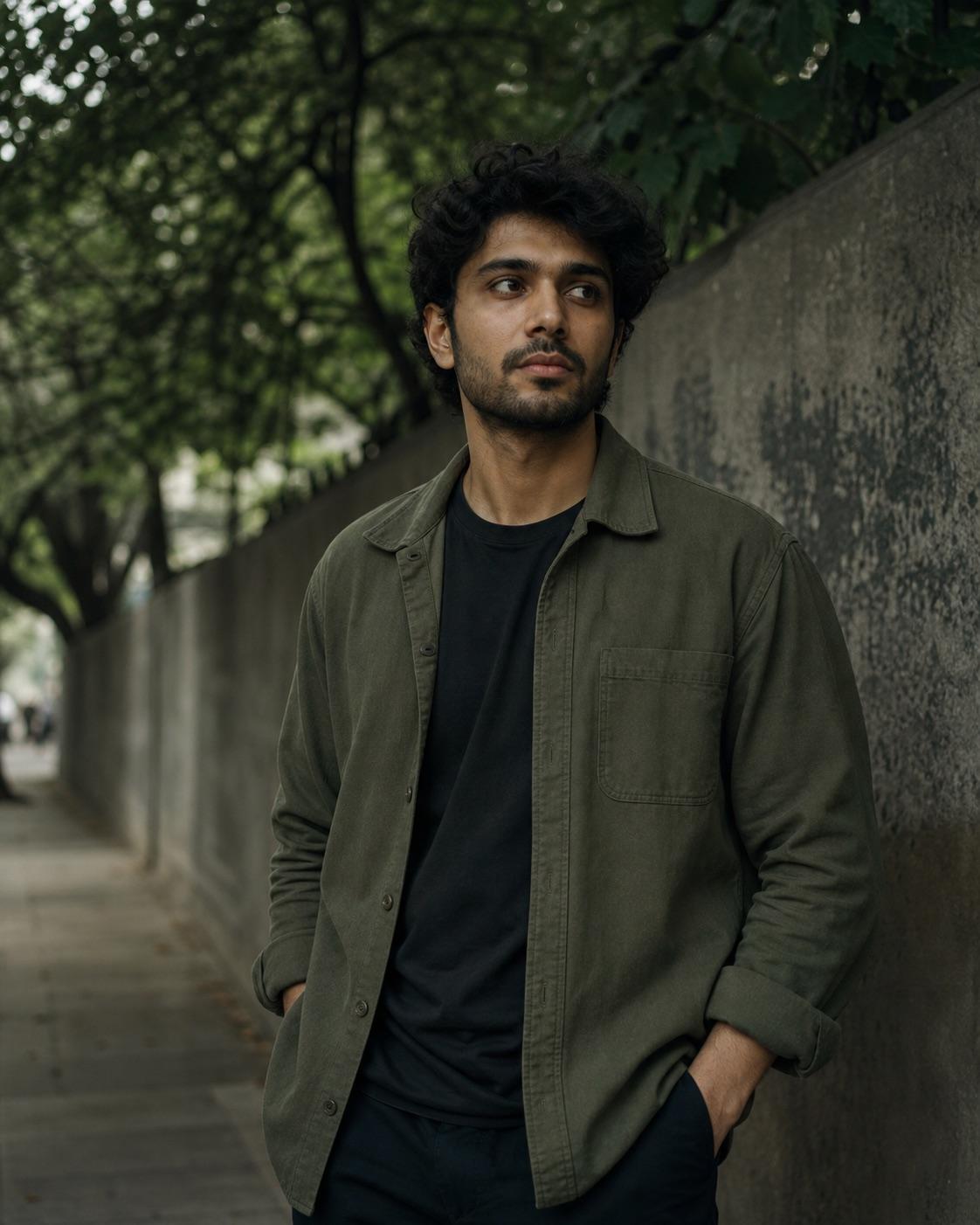
Preservation rules
Keep identity instructions clear
- Change color and tone only; keep the person, scene and crop unchanged.
- Keep skin tone neutral and facial shadows readable.
- Separate dark clothing from dark backgrounds.
- Use forest and olive greens without introducing military symbols or themes.
Variable controls
Change only what helps
- subject
- the permitted source portrait without identity changes
- outfit
- the source dark or olive clothing with texture protected
- background
- the original scene with subdued forest and olive greens
- lighting
- the original light with deeper but readable shadows
- camera
- keep source framing and perspective unchanged
- mood
- quiet, moody and editorial
- aspect Ratio
- source ratio
Best for
- tree-lined portraits
- olive and dark clothing
- subdued editorial grades
Avoid if
- the source has very little green or neutral information
- the face is already underexposed
Four-step workflow
Use the prompt in a compatible tool
- 01
Start with a permitted source image
Use your own photo, a licensed image, or a likeness you have clear permission to edit.
- 02
Adjust the useful variables
Change the subject, outfit, setting, lighting, camera direction and crop to match the photo you actually have.
- 03
Copy to a compatible AI tool
Paste the prompt into a tool that accepts image or photo editing instructions. This site does not upload or generate the image.
- 04
Review before sharing
Check identity, hands, skin texture, clothing, background details and consent before you post or export the result.
Quick answers
Effect questions
How do I stop skin turning green?
State that skin stays neutral and confine the green shift to foliage, background surfaces and selected shadows.
Which sources work best?
Use portraits with readable facial exposure and existing green, olive or neutral surroundings.
Related effects
Continue with a nearby task
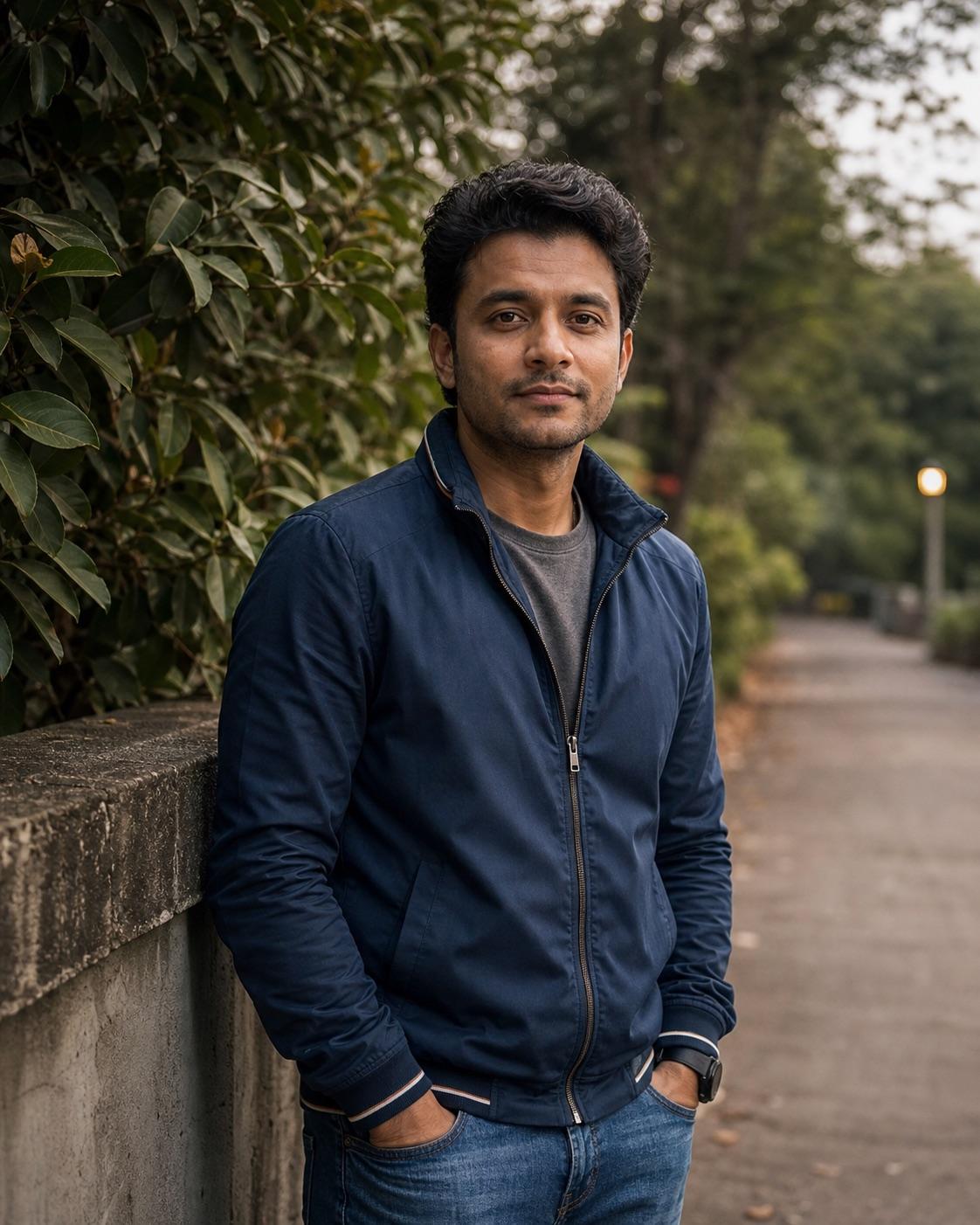
RSP Lightroom Preset Prompt
Use this prompt when the person and scene should stay intact and only the color treatment changes. It describes highlight warmth, shadow depth and skin-tone protection without pretending to be an official preset file.
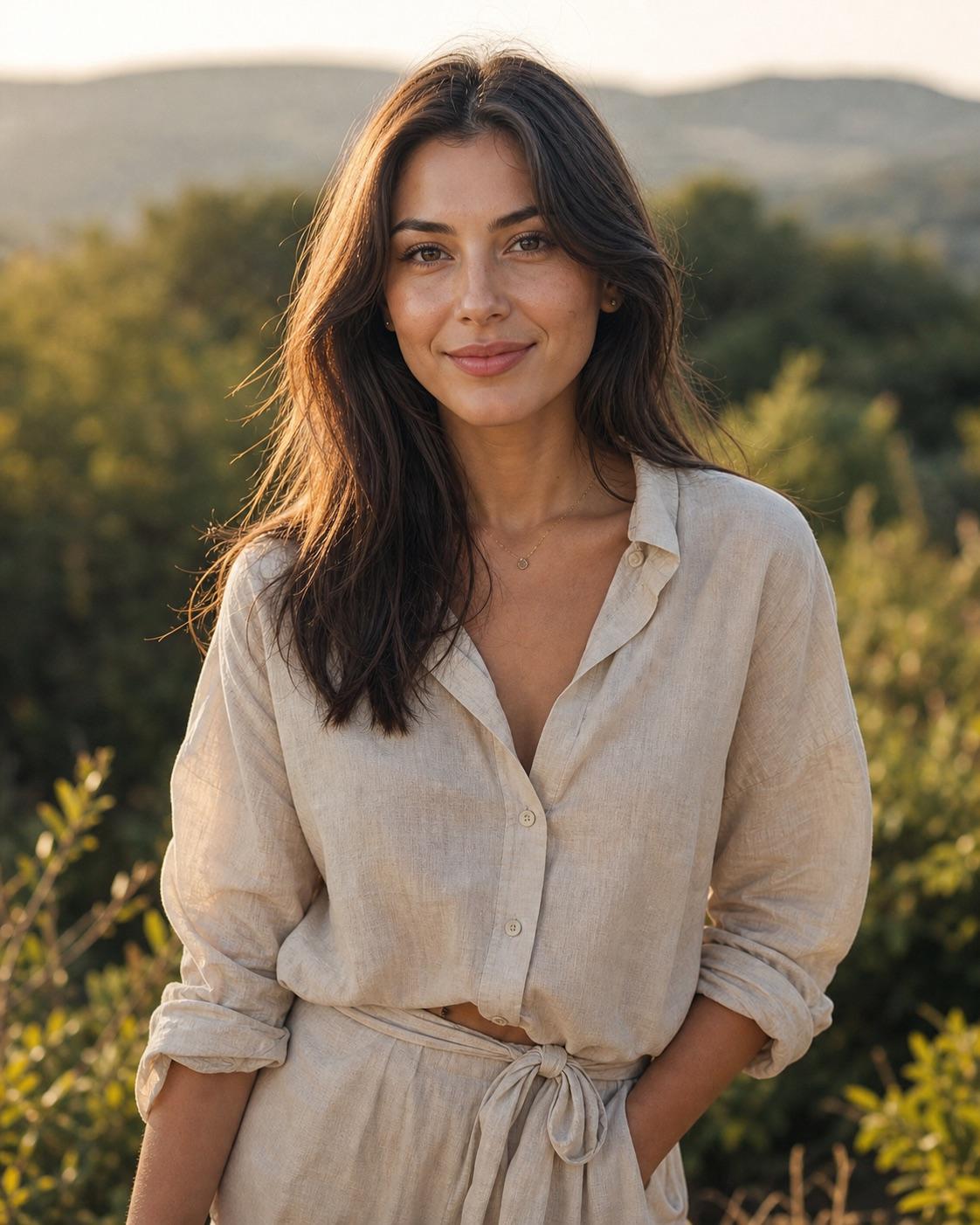
Warm Golden Hour Preset Prompt
A useful warm preset protects skin and highlight detail instead of turning the whole frame orange. This direction adds warmth selectively while keeping greens and shadows believable.
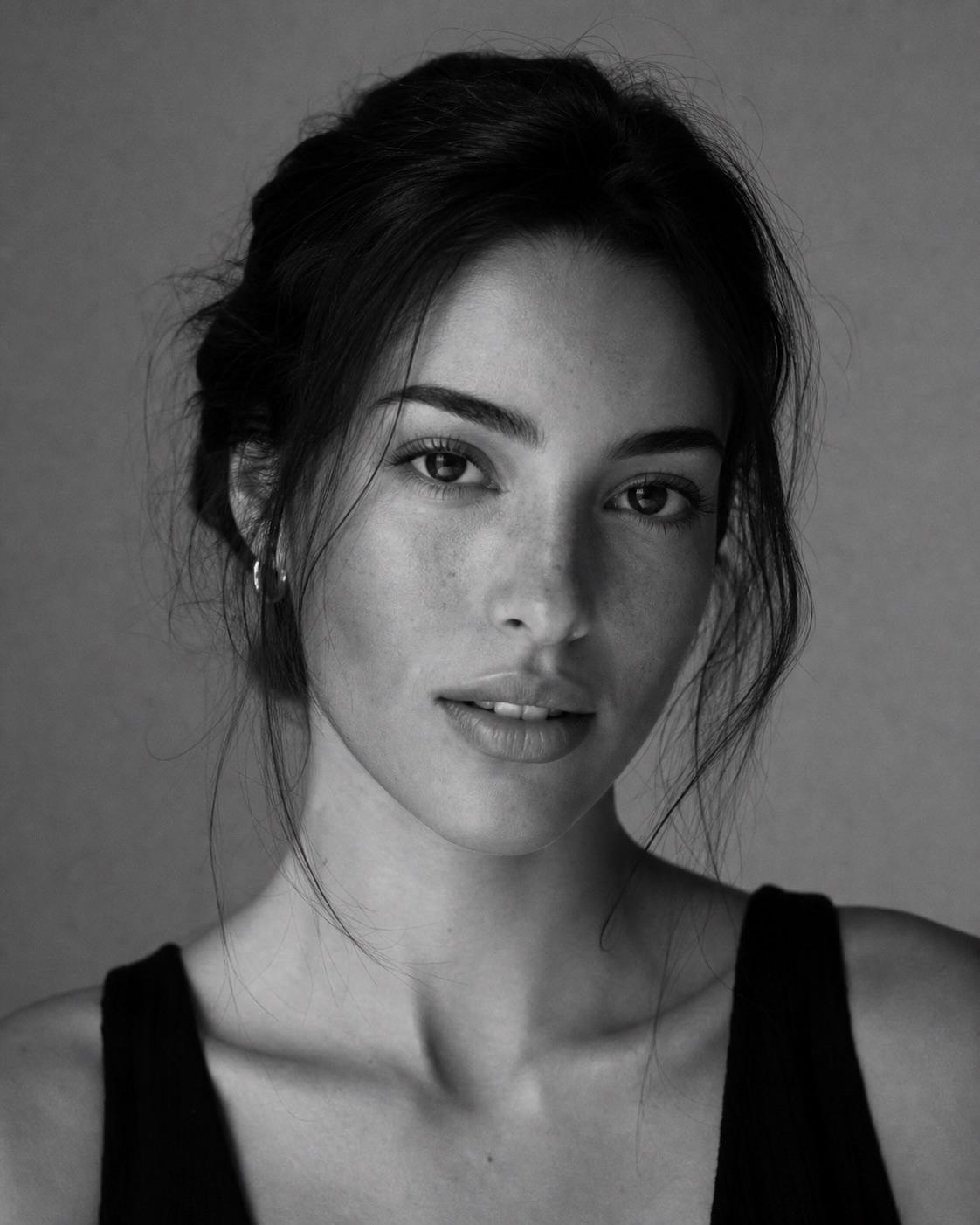
Black and White Portrait Preset Prompt
Monochrome works through tonal separation, not a simple saturation slider. This workflow protects eyes, skin texture and clothing edges while building a classic midtone-rich grade.

Men DP Attitude Prompt
A small display picture needs a readable face more than a complicated scene. This prompt keeps the composition centered, the background simple and the expression confident without turning aggressive.